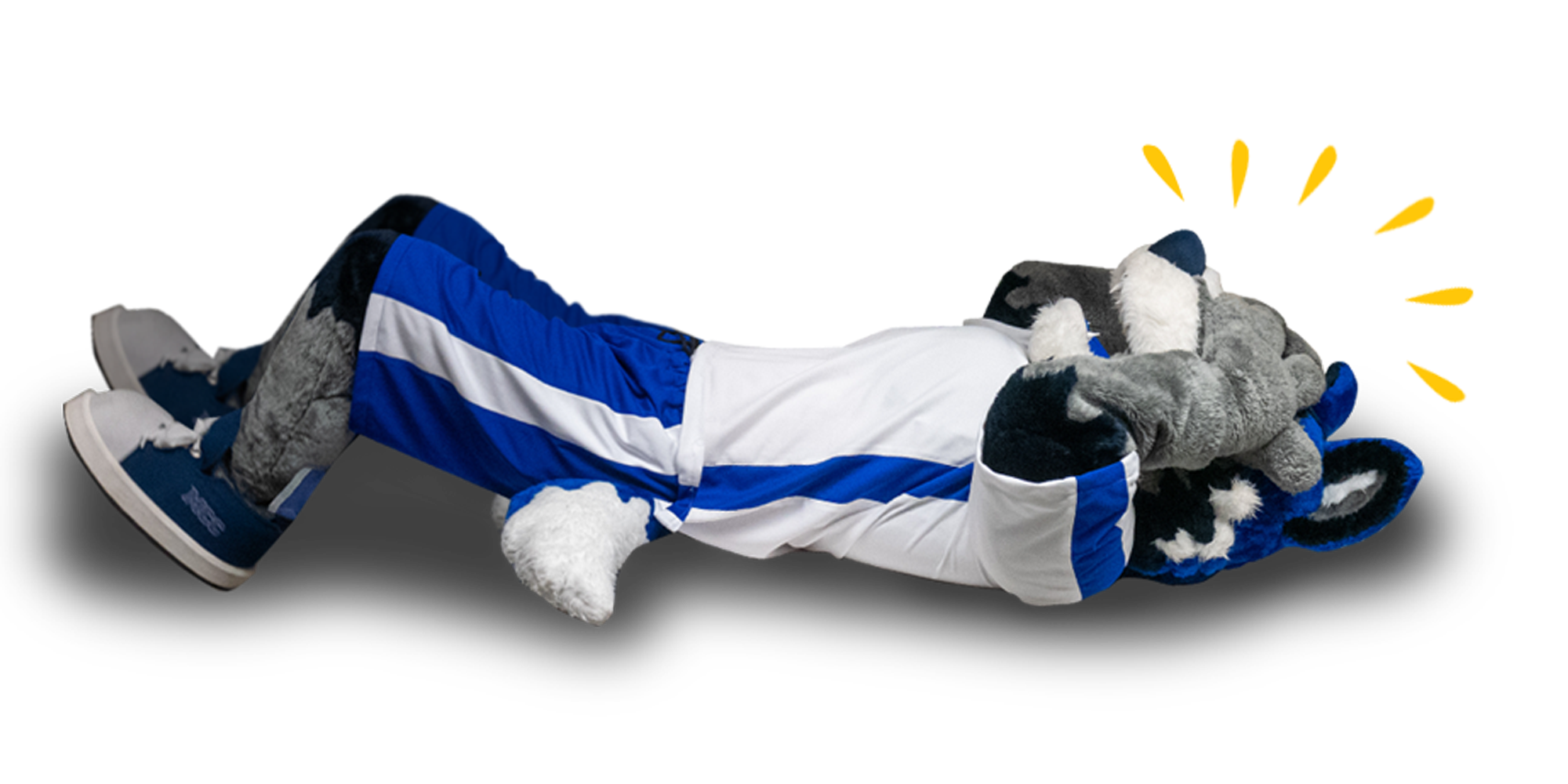
But don't worry: it's not like you have a pop quiz or anything.
Why did this happen?
- The internet is broke (ie. The tubes are full).
- Someone is playing a trick on you by changing the name of the page.
- Typing out full URLs in the address bar is hard and may result in typos.
Please try any of the helpful links above or below; we know those work at least.